<?xml version="1.0" encoding="utf-8"?><feed xmlns="http://www.w3.org/2005/Atom" ><generator uri="https://jekyllrb.com/" version="4.4.1">Jekyll</generator><link href="https://davamix.net/feed.xml" rel="self" type="application/atom+xml" /><link href="https://davamix.net/" rel="alternate" type="text/html" /><updated>2026-04-17T19:06:40+00:00</updated><id>https://davamix.net/feed.xml</id><title type="html">Davamix</title><subtitle>A personal blog about technology, software development, and engineering.</subtitle><author><name>Daniel Valcarce</name></author><entry><title type="html">Fixing front headphone jack on Debian with Creative CA0132</title><link href="https://davamix.net/2026/04/16/fixing-front-headphone-jack-on-debian-with-creative-ca0132/" rel="alternate" type="text/html" title="Fixing front headphone jack on Debian with Creative CA0132" /><published>2026-04-16T00:00:00+00:00</published><updated>2026-04-16T00:00:00+00:00</updated><id>https://davamix.net/2026/04/16/fixing-front-headphone-jack-on-debian-with-creative-ca0132</id><content type="html" xml:base="https://davamix.net/2026/04/16/fixing-front-headphone-jack-on-debian-with-creative-ca0132/"><![CDATA[<p>On Debian 13 with a Creative Sound Blaster Z (CA0132), the front panel headphone jack stopped working while speakers were fine — here is what caused it and how to fix it.</p>

<!--more-->

<h4 id="table-of-content">Table of content</h4>

<ul>
  <li><a href="#system-context">System context</a></li>
  <li><a href="#what-i-checked">What I checked</a></li>
  <li><a href="#root-cause">Root cause</a></li>
  <li><a href="#fix">Fix</a></li>
  <li><a href="#if-the-problem-comes-back">If the problem comes back</a></li>
  <li><a href="#useful-identification-commands">Useful identification commands</a></li>
</ul>

<h3 id="system-context">System context</h3>

<ul>
  <li><strong>OS with issue:</strong> Debian 13</li>
  <li><strong>Working comparison:</strong> Linux Mint live USB</li>
  <li><strong>Sound card:</strong> HDA Creative (CA0132 Sound Core3D), ALSA card 2, PCI <code class="language-plaintext highlighter-rouge">06:00.0</code></li>
  <li><strong>Symptom:</strong> speakers worked, headphones plugged into the front audio jack did not</li>
</ul>

<h3 id="what-i-checked">What I checked</h3>

<p>I compared the codec dumps for the Creative card between the Mint live USB and the Debian install. The jack/pin topology was effectively the same in both, so the hardware was not the issue.</p>

<p>The old <code class="language-plaintext highlighter-rouge">alsa-base.conf</code> from the Mint system was not the cause either — it had no Creative/CA0132-specific entries.</p>

<p>PipeWire could see the Creative analog sink, but the active port was <code class="language-plaintext highlighter-rouge">line-out</code> and the headphone port was reported as <strong>not available</strong>.</p>

<h3 id="root-cause">Root cause</h3>

<p>The Creative card mixer had headphone auto-detection disabled. On Debian before the fix, the relevant mixer controls were:</p>

<div class="language-plaintext highlighter-rouge"><div class="highlight"><pre class="highlight"><code>HP/Speaker Auto Detect = off
Output Select = Speakers
</code></pre></div></div>

<h3 id="fix">Fix</h3>

<p>Run:</p>

<div class="language-plaintext highlighter-rouge"><div class="highlight"><pre class="highlight"><code>amixer -c 2 set 'HP/Speaker Auto Detect' on
</code></pre></div></div>

<p>The front headphone jack started working immediately. The change survived a reboot on this system without needing to run <code class="language-plaintext highlighter-rouge">alsactl store</code>.</p>

<h3 id="if-the-problem-comes-back">If the problem comes back</h3>

<p><strong>1.</strong> Check the current values:</p>

<div class="language-plaintext highlighter-rouge"><div class="highlight"><pre class="highlight"><code>amixer -c 2 get 'HP/Speaker Auto Detect'
amixer -c 2 get 'Output Select'
</code></pre></div></div>

<p><strong>2.</strong> Re-apply the fix:</p>

<div class="language-plaintext highlighter-rouge"><div class="highlight"><pre class="highlight"><code>amixer -c 2 set 'HP/Speaker Auto Detect' on
</code></pre></div></div>

<p><strong>3.</strong> If needed, force headphone output manually:</p>

<div class="language-plaintext highlighter-rouge"><div class="highlight"><pre class="highlight"><code>amixer -c 2 set 'Output Select' 'Headphone'
</code></pre></div></div>

<p><strong>4.</strong> Save the ALSA mixer state explicitly:</p>

<div class="language-plaintext highlighter-rouge"><div class="highlight"><pre class="highlight"><code>sudo alsactl store
</code></pre></div></div>

<h3 id="useful-identification-commands">Useful identification commands</h3>

<div class="language-plaintext highlighter-rouge"><div class="highlight"><pre class="highlight"><code>cat /proc/asound/cards
pactl list short cards
pactl list short sinks
</code></pre></div></div>]]></content><author><name>AI based on Daniel&apos;s notes</name></author><category term="linux" /><category term="audio" /><category term="alsa" /><category term="pipewire" /><category term="debian" /><category term="creative" /><category term="ca0132" /><summary type="html"><![CDATA[On Debian 13 with a Creative Sound Blaster Z (CA0132), the front panel headphone jack stopped working while speakers were fine — here is what caused it and how to fix it.]]></summary></entry><entry><title type="html">GitHub Actions: Build a Xamarin.Forms project and create the APK</title><link href="https://davamix.net/2020/06/09/github-actions-build-a-xamarin-forms-project-and-create-the-apk/" rel="alternate" type="text/html" title="GitHub Actions: Build a Xamarin.Forms project and create the APK" /><published>2020-06-09T00:00:00+00:00</published><updated>2020-06-09T00:00:00+00:00</updated><id>https://davamix.net/2020/06/09/github-actions-build-a-xamarin-forms-project-and-create-the-apk</id><content type="html" xml:base="https://davamix.net/2020/06/09/github-actions-build-a-xamarin-forms-project-and-create-the-apk/"><![CDATA[<p>In this post I’ll show a way to configure a basic GitHub Action workflow in order to build a Xaramin.Forms application and create the APK, only Android at the moment.</p>

<!--more-->

<p>First of all, the workflow:</p>

<div class="language-plaintext highlighter-rouge"><div class="highlight"><pre class="highlight"><code>name: Build

on:
  push:
    branches: [ master ]
  pull_request:
    branches: [ master ]

jobs:
  # Build App
  build:
    runs-on: windows-latest
    env:
      SERVICE_APP_KEY: $
    steps:
      - uses: actions/checkout@v2
      - name: Setup MSBuild
        uses: microsoft/setup-msbuild@v1.0.0
      - name: Build Solution
        run: msbuild ./MyApplication.sln /restore /p:Configuration=Release
      - name: Create and Sign the APK
        run: msbuild MyApplication\MyApplication.Android\MyApplication.Android.csproj /t:SignAndroidPackage /p:Configuration=Release /p:OutputPath=bin\Release\
      - name: Upload artifact
        uses: actions/upload-artifact@v2
        with:
          name: MyApplication.apk
          path: MyApplication\MyApplication.Android\bin\Release\com.companyname.myapplication-Signed.apk
</code></pre></div></div>

<h3 id="step-by-step">Step by step</h3>

<p>The first lines are self-explanatory so I’ll jump to the <mark>build</mark> section.</p>

<div class="language-plaintext highlighter-rouge"><div class="highlight"><pre class="highlight"><code>build:
  runs-on: windows-latest
</code></pre></div></div>

<p>This will configure a Windows machine and all steps for this job will run in this environment. The default shell will be a <em>PowerShell</em>, so we can run scripts in this language.</p>

<div class="language-plaintext highlighter-rouge"><div class="highlight"><pre class="highlight"><code>env:
  SERVICE_APP_KEY: $
</code></pre></div></div>

<p>With this line we create an environment variable, <mark>SERVICE\_APP\_KEY</mark> with the content of the GitHub secret <mark>secrets.SERVICE\_APP\_KEY</mark>. The variables created in an upper level can be accessed by its children elements but a variable created in a <em>step</em> level, for example, cannot be accessed from other step or a parent element.</p>

<blockquote>
  <p>A secret in GitHub is a piece of encrypted information that belongs to the repository. To create a secret go to your repository <em>Settings -&gt; Secrets</em>.
If you try to print the value of a secret during the build process you will only see something like: SERVICE_APP_KEY: ****</p>
</blockquote>

<p>Now let’s explain the steps.</p>

<div class="language-plaintext highlighter-rouge"><div class="highlight"><pre class="highlight"><code>steps:
  - uses: actions/checkout@v2
</code></pre></div></div>

<p>The first step is the checkout. This action will download all the code to the current machine.</p>

<div class="language-plaintext highlighter-rouge"><div class="highlight"><pre class="highlight"><code>- name: Setup MSBuild
  uses: microsoft/setup-msbuild@v1.0.0
</code></pre></div></div>

<p>The next steps is to use the action <a href="https://github.com/microsoft/setup-msbuild">microsoft/setup-msbuild@v1.0.0</a> in order to configure the environment that allow us to use the <em>msbuild</em> tool.</p>

<div class="language-plaintext highlighter-rouge"><div class="highlight"><pre class="highlight"><code>- name: Build Solution
  run: msbuild ./MyApplication.sln /restore /p:Configuration=Release
</code></pre></div></div>

<p>Build the solution in <em>Release</em> mode.</p>

<div class="language-plaintext highlighter-rouge"><div class="highlight"><pre class="highlight"><code>- name: Create and Sign the APK
  run: msbuild MyApplication\MyApplication.Android\MyApplication.Android.csproj /t:SignAndroidPackage /p:Configuration=Release /p:OutputPath=bin\Release\
</code></pre></div></div>

<p>In order to create and sign the package we will execute the <em>msbuild</em> command over the Android project with the target <mark>/t:SignAndroidPackage</mark>. The configuration should be <mark>Release</mark> and the generated <em>.apk</em> file will be located in <em>{project_folder}</em><mark>\bin\Release</mark></p>

<p>The name of the file will be <em>com.companyname.myapplication-Signed.apk</em>. The default name of the package is <em>com.companyname.myapplication</em>, you can change it in the <em>AndroidManifest.xml</em> file or in the properties of the Android project in Visual Studio.</p>

<p>This process attach the <em>-Signed</em> suffix to the name.</p>

<div class="language-plaintext highlighter-rouge"><div class="highlight"><pre class="highlight"><code>- name: Upload artifact
  uses: actions/upload-artifact@v2
  with:
    name: MyApplication.apk
    path: MyApplication\MyApplication.Android\bin\Release\com.companyname.myapplication-Signed.apk
</code></pre></div></div>

<p>The last step is to make available the artifact to be downloaded. We will use the action <mark>actions/upload-artifact@v2</mark> with the parameters <mark>name</mark> as the name of the artifact, and the <mark>path</mark>, the path where the package is located.</p>

<h3 id="how-to-manage-the-secret-keys">How to manage the secret keys</h3>

<p>The hardcoded keys are not a good practice ;) A better solution could be create an environment variable in your local system, but, how to access from code? One approach I follow is to create a class to manage the secrets and populate it with placeholders, something like:</p>

<div class="language-plaintext highlighter-rouge"><div class="highlight"><pre class="highlight"><code>public static class Secrets{
  public static string ServiceID =&gt; "#KEY1#"
  public static string OtherKey =&gt; "#KEY2#"
}
</code></pre></div></div>

<p>To replace the placeholders by the valid keys I have a <em>PowerShell</em> script that runs in the <em>pre-build</em> event on Visual Studio.</p>

<div class="language-plaintext highlighter-rouge"><div class="highlight"><pre class="highlight"><code>function Replace-Text{
  &lt;#
  .SYNOPSIS
    Replace the $placeholder value by $key value in $file
  .PARAMETER $file
    File to replace values. Mandatory
  .PARAMETER $placeholder
    Value to be replaced. Mandatory
  .PARAMETER $key
    The new value to replace the $placeholder. Mandatory
  .EXAMPLE
    Replace-Text file_path "#TEXT TO REPLACE#" "KEY VALUE"
  #&gt;
  Param(
    [Parameter(Mandatory=$true)]
    [string]$file,
    [Parameter(Mandatory=$true)]
    [string]$placeholder,
    [Parameter(Mandatory=$true)]
    [string]$key
  )
  ((Get-Content -path $file -Raw) -replace $placeholder, $key) | Set-Content -Path $file
}
$file = $args[0]
$placeholder = $args[1]
$key_value = $args[2]
Replace-Text $file $placeholder $key_value
</code></pre></div></div>

<p>This script have three parameters:</p>

<ul>
  <li>the <mark>$file</mark> where the placeholder are</li>
  <li>the <mark>$placeholder</mark> to be replaced</li>
  <li>the <mark>$key\_value</mark> from the environment variable</li>
</ul>

<p>This script is called from the <em>Pre-build event command line</em>. <em>Project properties -&gt; Build Events</em>:</p>

<div class="language-plaintext highlighter-rouge"><div class="highlight"><pre class="highlight"><code>powershell.exe -ExecutionPolicy Unrestricted $(ProjectDir)..\..\Tools\replace-keys-script.ps1 $(ProjectDir)Secrets.cs "`#KEY1`#" $env:SERVICE_APP_KEY

powershell.exe -ExecutionPolicy Unrestricted $(ProjectDir)..\..\Tools\replace-keys-script.ps1 $(ProjectDir)Secrets.cs "`#KEY2`#" $env:OTHER_KEY
</code></pre></div></div>

<blockquote>
  <p>If the placeholder has # characters like #INSERT_KEY_HERE# they must be escaped with grave-accents: “<code class="language-plaintext highlighter-rouge">#INSERT\_KEY\_HERE</code>#” in order to escape the comment symbol.</p>
</blockquote>

<p>Let me show the folder structure:</p>

<div class="language-plaintext highlighter-rouge"><div class="highlight"><pre class="highlight"><code>/
|- Solution.sln
|- Project/
|- Project.Android/
|- Tools/
    |- replace-keys-script.ps1
</code></pre></div></div>

<p>Why use <mark>$(ProjectDir)..\..\Tools</mark> instead of <mark>$(SolutionDir)Tools</mark>? Because <mark>$(SolutionDir)</mark> does not work on GitHub Actions for whatever reason.</p>

<p>As you may notice, this process change the content of the files and Git wil mark them. To fix this I do a <em>checkout</em> for all files in the <em>Post-build</em> event:</p>

<div class="language-plaintext highlighter-rouge"><div class="highlight"><pre class="highlight"><code>git checkout $(ProjectDir)Secrets.cs
</code></pre></div></div>

<p>After the build process the application will work with correct values and the code remains intact.</p>

<p>The only thing we need to do in GitHub is to create the secrets we need for the keys and create the environment variables in the workflow with the same name as we have in out system.</p>

<h2 id="references">References</h2>

<p><a href="https://docs.microsoft.com/en-us/xamarin/android/deploy-test/building-apps/build-process">Xamarin Android - Build Process</a></p>

<p><a href="https://github.com/marketplace/actions/setup-msbuild">GitHub Action - setup-msbuild</a></p>

<p><a href="https://stackoverflow.com/a/20638116/844372">Prebuild event in Visual Studio replacing $(SolutionDir) with *Undefined*</a></p>

<p><a href="https://stackoverflow.com/a/56646415/844372">How to use VisualStudio SignAndroidPackage in TeamCity?</a></p>]]></content><author><name>Daniel Valcarce</name></author><category term="devops" /><category term="mobile" /><category term="github-actions" /><category term="xamarin" /><category term="ci-cd" /><summary type="html"><![CDATA[In this post I'll show a way to configure a basic GitHub Action workflow in order to build a Xaramin.]]></summary></entry><entry><title type="html">Detecting my cats with Detectron2</title><link href="https://davamix.net/2020/01/24/detecting-my-cats-with-detectron2/" rel="alternate" type="text/html" title="Detecting my cats with Detectron2" /><published>2020-01-24T00:00:00+00:00</published><updated>2020-01-24T00:00:00+00:00</updated><id>https://davamix.net/2020/01/24/detecting-my-cats-with-detectron2</id><content type="html" xml:base="https://davamix.net/2020/01/24/detecting-my-cats-with-detectron2/"><![CDATA[<p>In this post I’ll show how train a model with Detectron2 with a custom dataset and then apply it detect my cats in a picture or video.</p>

<!--more-->

<h4 id="table-of-content">Table of content</h4>

<ul>
  <li>Install Detectron2</li>
  <li>Create your own dataset</li>
  <li>Steps to annotate an image</li>
  <li>Training process</li>
  <li>Data loader</li>
  <li>Inference</li>
  <li>References</li>
</ul>

<h3 id="install-detectron2">Install Detectron2</h3>

<p>I use the docker version of Detectron2 that installs all the requirements in a few steps:</p>

<ol>
  <li>
    <p>Take the required files, <em>Dockerfile</em>, <em>Dockerfile-circleci</em>, <em>docker-compose.yml</em> from <a href="https://github.com/facebookresearch/detectron2/tree/master/docker">https://github.com/facebookresearch/detectron2/tree/master/docker</a></p>
  </li>
  <li>
    <p>Create and run the container with the command:</p>
  </li>
</ol>

<div class="language-plaintext highlighter-rouge"><div class="highlight"><pre class="highlight"><code>docker-compose run --volume=/local/path/to/save/your/files:/tmp:rw detectron2 
</code></pre></div></div>

<blockquote>
  <p><strong>Note</strong><br />
The installed version of Pillow package is 7.0.0, this could fail when you try to train your model showing an error similiar to:</p>

  <p><code class="language-plaintext highlighter-rouge">from PIL import Image, ImageOps, ImageEnhance, PILLOW_VERSION
ImportError: cannot import name 'PILLOW_VERSION'</code></p>

  <p>The solution is to downgrade the version to 6.2.2:</p>

  <div class="language-plaintext highlighter-rouge"><div class="highlight"><pre class="highlight"><code>pip install --user Pillow==6.2.2
</code></pre></div>  </div>
</blockquote>

<p>Check the <a href="https://github.com/facebookresearch/detectron2/blob/master/INSTALL.md">installation guide</a> to install Detectron2 using other methods.</p>

<h3 id="create-your-own-dataset">Create your own dataset</h3>

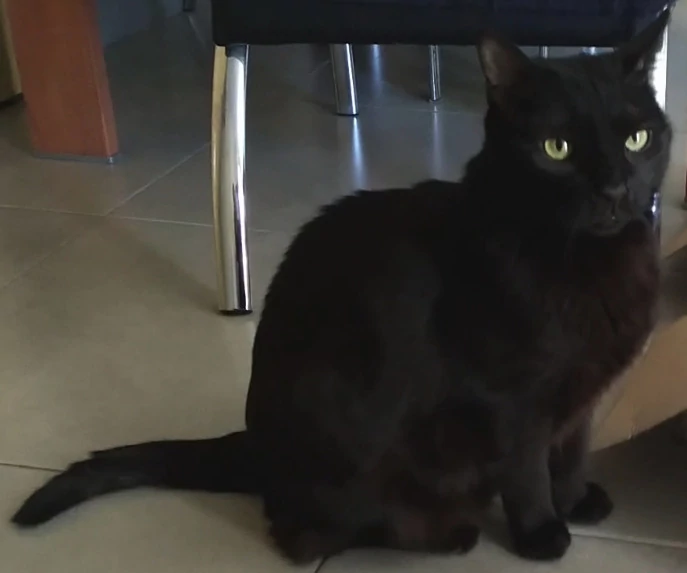
<p>The first (and most tedious) step is to annotate the images. For this examples I will use a set of images of my cats, Blacky and Niche:</p>

<p><img src="/assets/images/train-Detectron2-with-custom-dataset/blacky-sample.webp" alt="" title="Blacky" />
<img src="/assets/images/train-Detectron2-with-custom-dataset/niche-sample.webp" alt="" title="Niche" /></p>

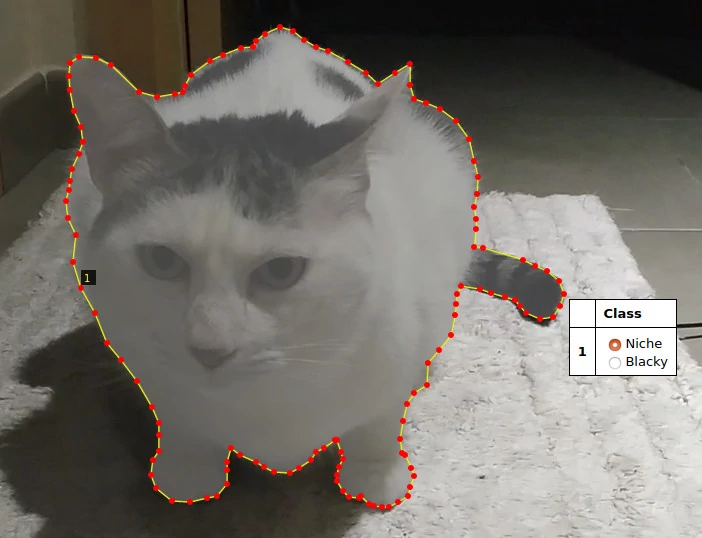
<p>and I’ll use <a href="http://www.robots.ox.ac.uk/~vgg/software/via/">VIA 2.0.8</a>, it’s an easy tool to make the annotations. This is an example of how an annotation looks like:</p>

<p><img src="/assets/images/train-Detectron2-with-custom-dataset/niche-annotation.webp" alt="" title="Image of a region draw around Niche" /></p>

<h3 id="steps-to-annotate-an-image">Steps to annotate an image</h3>

<blockquote>
  <p><strong>Note</strong></p>
  <ul>
    <li>The instructions below are for VIA tool, if you are using a different tool, then jump to the next section.</li>
    <li>Follow this process twice, once for training images, another for validation images.</li>
  </ul>
</blockquote>

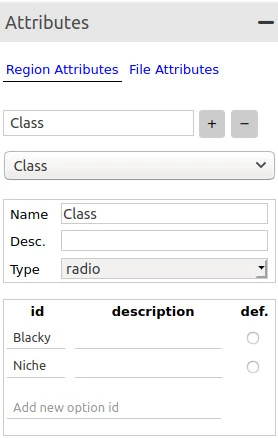
<p>Before start to annotating the images you must create a region attribute named <mark>Class</mark>, you can change the name if you want, in order to choose which region your are drawing.</p>

<p><img src="/assets/images/train-Detectron2-with-custom-dataset/via-attributes.webp" alt="" title="VIA - Attributes panel" /></p>

<p>Looking the image above, follow these steps:</p>

<ol>
  <li>Expand the <em>Attributes</em> panel.</li>
  <li>Type the attribute name <mark>Class</mark> on textbox and click on plus symbol.</li>
  <li>Change the <em>Type</em> of the attribute from <mark>text</mark> to <mark>radio</mark>.</li>
  <li>Write all classes available for the dataset, <em>Blacky</em> and <em>Niche</em> in my case, in the <mark>id</mark> field.</li>
</ol>

<p>Next, the basics steps to annotate the images:</p>

<ol>
  <li>Add the images to the project clicking on the <em>Add Files</em> button in the <em>Project panel</em>.</li>
  <li>Select one image and start drawing the region using the <em>Poligon region shape</em>.</li>
  <li>To apply the changes press <em>Enter</em> and the region will be saved.</li>
  <li>
    <p>Click outside of the region, click again on the region and select the class you are annotating.</p>

    <blockquote>
      <p>Sometimes you will need to scroll down / right to see the option list</p>
    </blockquote>
  </li>
  <li>Once all images are annotated, export the annotations as json. Go <em>Annotation</em> menu, then <em>Export Annotations (as json)</em>.</li>
</ol>

<p>The json file will contains a section by image similar to this one:</p>

<div class="language-plaintext highlighter-rouge"><div class="highlight"><pre class="highlight"><code>"frame80.jpg214814": {
  "filename": "frame80.jpg",
  "size": 214814,
  "regions": [
    {
      "shape_attributes": {
        "name": "polygon",
        "all_points_x": [
          1096,
          1016,
          947,
          ...
        ],
        \"all_points_y\": [
          116,
          191,
          231,
          ...
        ]
      },
      \"region_attributes\": {
        \"Class\": \"Blacky\"
      }
    }
  ],
  \"file_attributes\": {}
}

...
</code></pre></div></div>

<h3 id="training-process">Training process</h3>

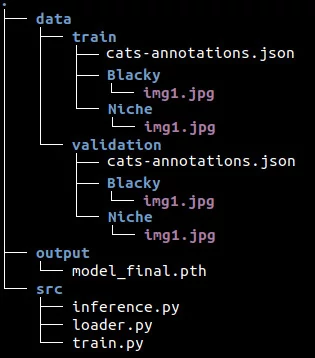
<p>Before to start to explain the code, let me show the folder structure in order to have an idea of where are the code, the data and all this stuff.</p>

<p><img src="/assets/images/train-Detectron2-with-custom-dataset/folder_structure.webp" alt="" title="folder structe of the project" /></p>

<p>The <em>data</em> folder contains two folders, <em>train</em> and <em>validation</em>, which contain one folder per class (of course, there are more than one image in the class folder). Also, the <em>train</em> and <em>validation</em> folders have its respective annotation files. The <em>src</em> folder contains the code sepated in different files.</p>

<p>Ok, now we are ready to write the code. First things first, we need to import the functions required from detectron2.</p>

<div class="language-plaintext highlighter-rouge"><div class="highlight"><pre class="highlight"><code># train.py

import os

from detectron2.data import MetadataCatalog, DatasetCatalog
from detectron2.config import get_cfg
from detectron2 import model_zoo
from detectron2.engine import DefaultTrainer
from loader import get_data_dicts
</code></pre></div></div>

<p>Next, we’ll register both datasets, train and validation, and indicate the name of the classes that we are using.</p>

<div class="language-plaintext highlighter-rouge"><div class="highlight"><pre class="highlight"><code>for d in ["train", "val"]:
  DatasetCatalog.register("cats_" + d, lambda d=d: get_data_dicts("../data/" + d))
  MetadataCatalog.get("cats_" + d).set(thing_classes=["Blacky", "Niche"])

cats_metadata = MetadataCatalog.get("cats_train")
</code></pre></div></div>

<p>The <mark>DatasetCatalog.register</mark> function expects two parameters, the name of the dataset, and the function to get the data.
With <mark>MetadataCatalog</mark> we specify which classes are present in the dataset using the attribute thing_classes. To know more about the metadata check the <a href="https://detectron2.readthedocs.io/tutorials/datasets.html#metadata-for-datasets">documentation</a>.</p>

<p>Now let’s configure the model:</p>

<div class="language-plaintext highlighter-rouge"><div class="highlight"><pre class="highlight"><code>cfg = get_cfg()
cfg.merge_from_file(model_zoo.get_config_file("COCO-InstanceSegmentation/mask_rcnn_R_50_FPN_3x.yaml"))
cfg.DATASETS.TRAIN = ("cats_train",)
cfg.DATASETS.TEST = ()
cfg.DATALOADER.NUM_WORKERS = 4
cfg.MODEL.WEIGHTS = "detectron2://COCO-InstanceSegmentation/mask_rcnn_R_50_FPN_3x/137849600/model_final_f10217.pkl"
cfg.SOLVER.IMS_PER_BATCH = 2
cfg.SOLVER.BASE_LR = 0.00025
cfg.SOLVER.MAX_ITER = 700
cfg.MODEL.ROI_HEADS.BATCH_SIZE_PER_IMAGE = 128
cfg.MODEL.ROI_HEADS.NUM_CLASSES = 2
</code></pre></div></div>

<ul>
  <li><strong>get_cfg()</strong>: returns an instance of CfgNode class that allow us to modify the configuration of the model.</li>
  <li><strong>cfg.merge_from_file</strong>: we use this to apply the original configuration from <em>mask_rcnn_R_50_FPN_3x</em> model to our configuration.</li>
  <li><strong>cfg.DATASETS.TRAIN</strong>: This is the list of dataset names for training. Important to note the comma at the end.</li>
  <li><strong>cfg.DATASETS.TEST</strong>: This remains empty for the training purposes.</li>
  <li><strong>cfg.DATALOADER.NUM_WORKERS</strong>: Number of data loading threads.</li>
  <li><strong>cfg.MODEL.WEIGHTS</strong>: Pick the weights from <em>mask_rcnn_R_50_FPN_3x</em> model.</li>
  <li><strong>cfg.SOLVER.IMS_PER_BATCH</strong>: Number of images per batch.</li>
  <li><strong>cfg.SOLVER.BASE_LR</strong>: Learning rate.</li>
  <li><strong>cfg.SOLVER.MAX_ITER</strong>: Total iterations (Detectron2 don’t use epochs).</li>
  <li><strong>cfg.MODEL.ROI_HEADS.BATCH_SIZE_PER_IMAGE</strong>: Indicate the number of ROI’s (Region of Interest) per training minibatch.</li>
  <li><strong>cfg.MODEL.ROI_HEADS.NUM_CLASSES</strong>: Number of classes.</li>
</ul>

<p>Basically what we are doing here is to get configuration from an existing model, <em>mask_rcnn_R_50_FPN_3x</em>, then we overwrite some of the values like learning rate, iterations, etc…
Check the <a href="https://detectron2.readthedocs.io/modules/config.html#config-references">documentation</a> about the configuration to know all available options that you can change.</p>

<p>And finally it’s time to call the training process:</p>

<div class="language-plaintext highlighter-rouge"><div class="highlight"><pre class="highlight"><code>os.makedirs(cfg.OUTPUT_DIR, exist_ok=True)

trainer = DefaultTrainer(cfg)

trainer.resume_or_load(resume=False)

trainer.train()
</code></pre></div></div>

<h3 id="data-loader">Data loader</h3>

<p>Now it’s time to implement the function to let Detectron2 know how to obtain the data from the dataset that we registered before with:</p>

<div class="language-plaintext highlighter-rouge"><div class="highlight"><pre class="highlight"><code>DatasetCatalog.register("cats_" + d, lambda d=d: get_data_dicts("../data/" + d))
</code></pre></div></div>

<p>The code of <em>loader.py</em> is pretty similar to the function shown in the  <a href="https://colab.research.google.com/drive/16jcaJoc6bCFAQ96jDe2HwtXj7BMD_-m5#scrollTo=tjbUIhSxUdm_">Colab notebook</a></p>

<div class="language-plaintext highlighter-rouge"><div class="highlight"><pre class="highlight"><code># loader.py

def get_data_dicts(img_dir):
  classes = ["Blacky", "Niche"]
  json_file = os.path.join(img_dir, "cats-annotations.json")
  with open(json_file) as f:
    imgs_anns = json.load(f)
  dataset_dicts = []
  for idx, v in enumerate(imgs_anns.values()):
    record = {}
    if "regions" not in v: continue
    # Extract info from regions
    annos = v["regions"]
    objs = []
    for anno in annos:
      shape_attr = anno["shape_attributes"]
      px = shape_attr["all_points_x"]
      py = shape_attr["all_points_y"]
      poly = [(x + 0.5, y + 0.5) for x, y in zip(px, py)]
      poly = [p for x in poly for p in x]
      region_attr = anno["region_attributes"]
      current_class = region_attr["Class"]
      obj = {
        "bbox": [np.min(px), np.min(py), np.max(px), np.max(py)],
        "bbox_mode": BoxMode.XYXY_ABS,
        "segmentation": [poly],
        "category_id": classes.index(current_class),
        "iscrowd": 0
      }
      objs.append(obj)
    record["annotations"] = objs
    # Get info of the image
    filename = os.path.join(img_dir, current_class, v["filename"])
    height, width = cv2.imread(filename).shape[:2]
    record["file_name"] = filename
    record["image_id"] = idx
    record["height"] = height
    record["width"] = width
    dataset_dicts.append(record)
  return dataset_dicts
</code></pre></div></div>

<p>The function loops through all annotations in the json file and extract the information related with the region, category, etc… of the image.</p>

<p>The annotation itself is represented by the dictionary <mark>obj</mark> that contains some specific keys:</p>

<ul>
  <li><strong>bbox</strong>: list of 4 numbers representing the bounding box of the instance.</li>
  <li><strong>bbox_mode</strong>: the format of the bbox.</li>
  <li><strong>category_id</strong>: number that represents the category label.</li>
  <li><strong>iscrowd</strong>: 0 or 1. Whether the instance is labeled as COCO’s format.</li>
</ul>

<p>Also, some extra information is saved in the record dictionary:</p>

<ul>
  <li><strong>file_name</strong>: the fullpath of the image.</li>
  <li><strong>image_id</strong>: a unique id to identify the image.</li>
  <li><strong>height</strong>: self explanatory.</li>
  <li><strong>width</strong>: self explanatory.</li>
</ul>

<p>To know more about of the dictionary check the  <a href="https://detectron2.readthedocs.io/tutorials/datasets.html#register-a-dataset">documentation</a>.</p>

<h3 id="inference">Inference</h3>

<p>It’s time to do some predictions and we start with the imports:</p>

<div class="language-plaintext highlighter-rouge"><div class="highlight"><pre class="highlight"><code># inference.py

import os
import random
import cv2

from detectron2.config import get_cfg
from detectron2 import model_zoo
from detectron2.engine import DefaultPredictor
from detectron2.utils.visualizer import Visualizer, ColorMode
from detectron2.data import MetadataCatalog
from loader import get_data_dicts
</code></pre></div></div>

<p>For inference we use a few different functions: <mark>DefaultPredictor</mark>, <mark>Visualizer</mark> and <mark>ColorMode</mark>.</p>

<p>Next, we configure the model as we did on the training process, then create the predictor:</p>

<div class="language-plaintext highlighter-rouge"><div class="highlight"><pre class="highlight"><code>classes = ["Blacky", "Niche"]

cfg = get_cfg()
cfg.merge_from_file(model_zoo.get_config_file("COCO-InstanceSegmentation/mask_rcnn_R_50_FPN_3x.yaml"))
cfg.DATASETS.TEST = ("cats_val",)
cfg.MODEL.WEIGHTS = os.path.join(cfg.OUTPUT_DIR, "model_final.pth")
cfg.MODEL.ROI_HEADS.NUM_CLASSES = 2
cfg.MODEL.ROI_HEADS.SCORE_THRESH_TEST = 0.7

predictor = DefaultPredictor(cfg)
</code></pre></div></div>

<p>This configuration is similar to the configuration we used in the training but this time the <mark>WEIGHTS</mark> come from our trained model <em>model_final.pth</em>.</p>

<div class="language-plaintext highlighter-rouge"><div class="highlight"><pre class="highlight"><code>dataset_dicts = get_data_dicts("../data/validation")

for idx, d in enumerate(random.sample(dataset_dicts, 3)):
  im = cv2.imread(d["file_name"])
  outputs = predictor(im)
  
  v = Visualizer(im[:, :, ::-1],
    metadata = MetadataCatalog.get("cats_val").set(
      thing_classes=classes,
      thing_colors=[(177, 205, 223), (223, 205, 177)]),
    scale = 0.8,
    instance_mode = ColorMode.IMAGE_BW
  )

  pred_class = (outputs['instances'].pred_classes).detach()[0]
  pred_score = (outputs['instances'].scores).detach()[0]
  
  print(f"File: {d['file_name']}")
  print(f"--&gt; Class: {classes[pred_class]}, {pred_score * 100:.2f}%")

  # Save image predictions
  v = v.draw_instance_predictions(outputs["instances"].to("cpu"))
  image_name = f"inference_{idx}.jpg"
  cv2.imwrite(image_name, v.get_image()[:, :, ::-1])
</code></pre></div></div>

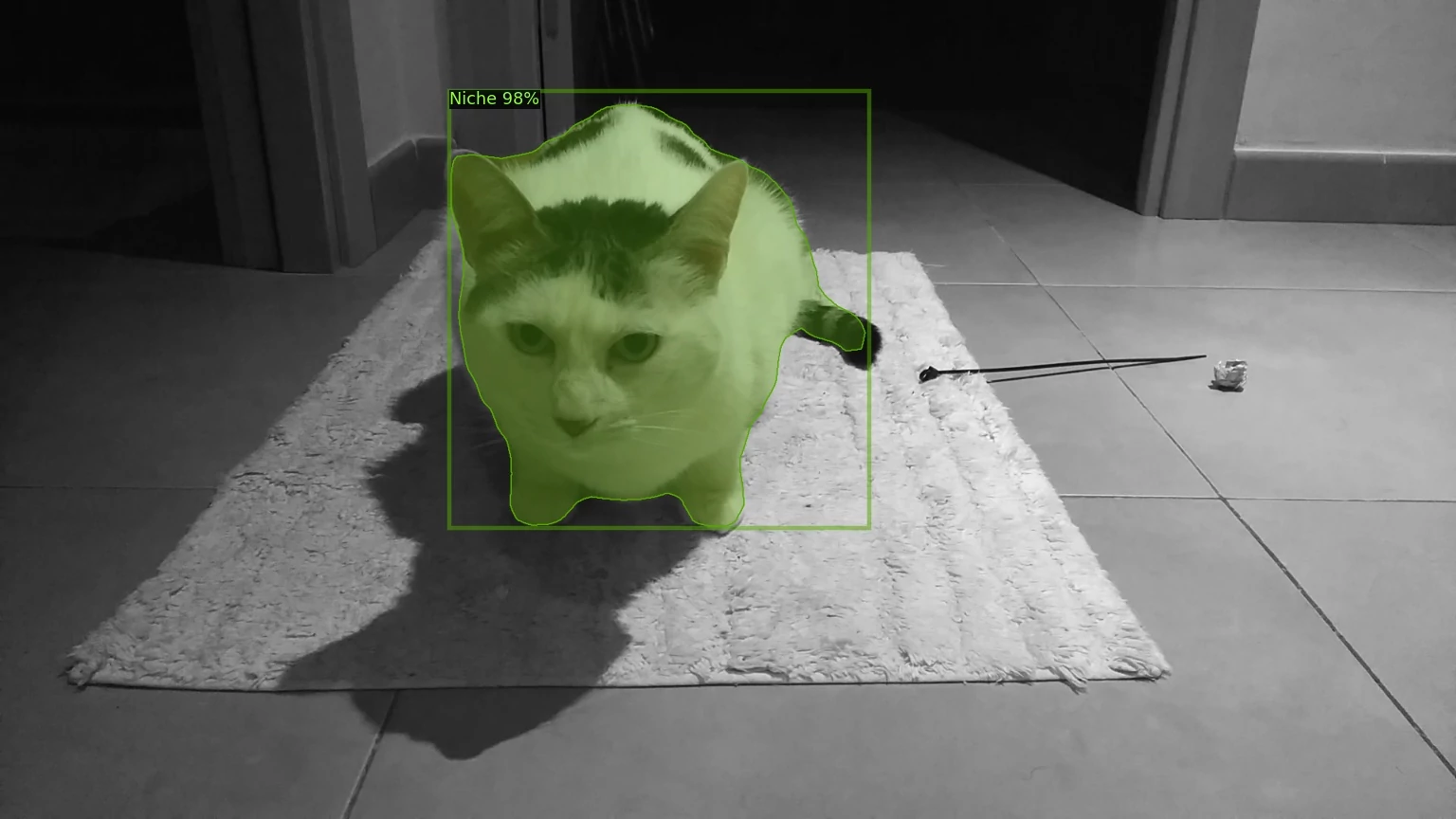
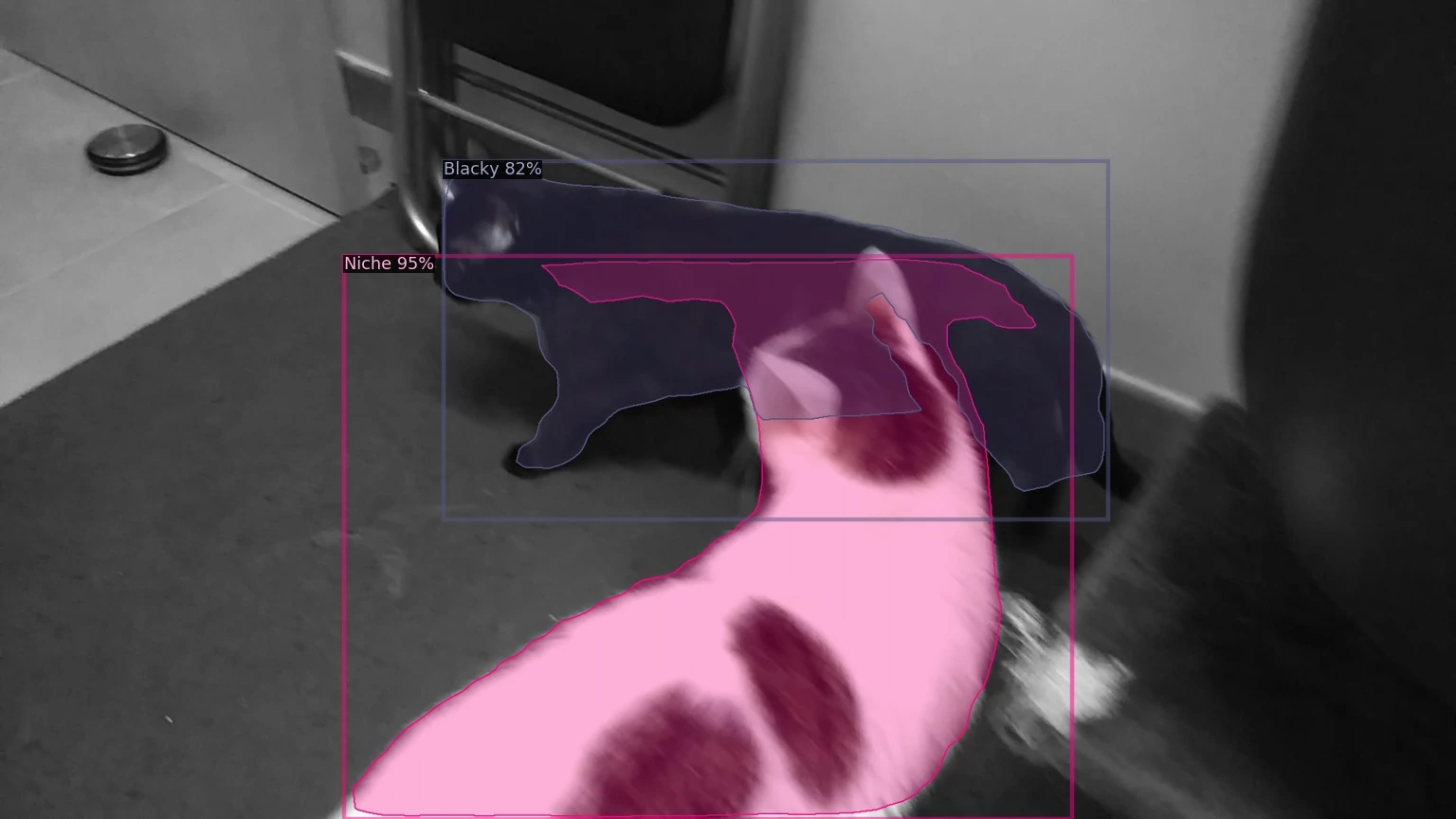
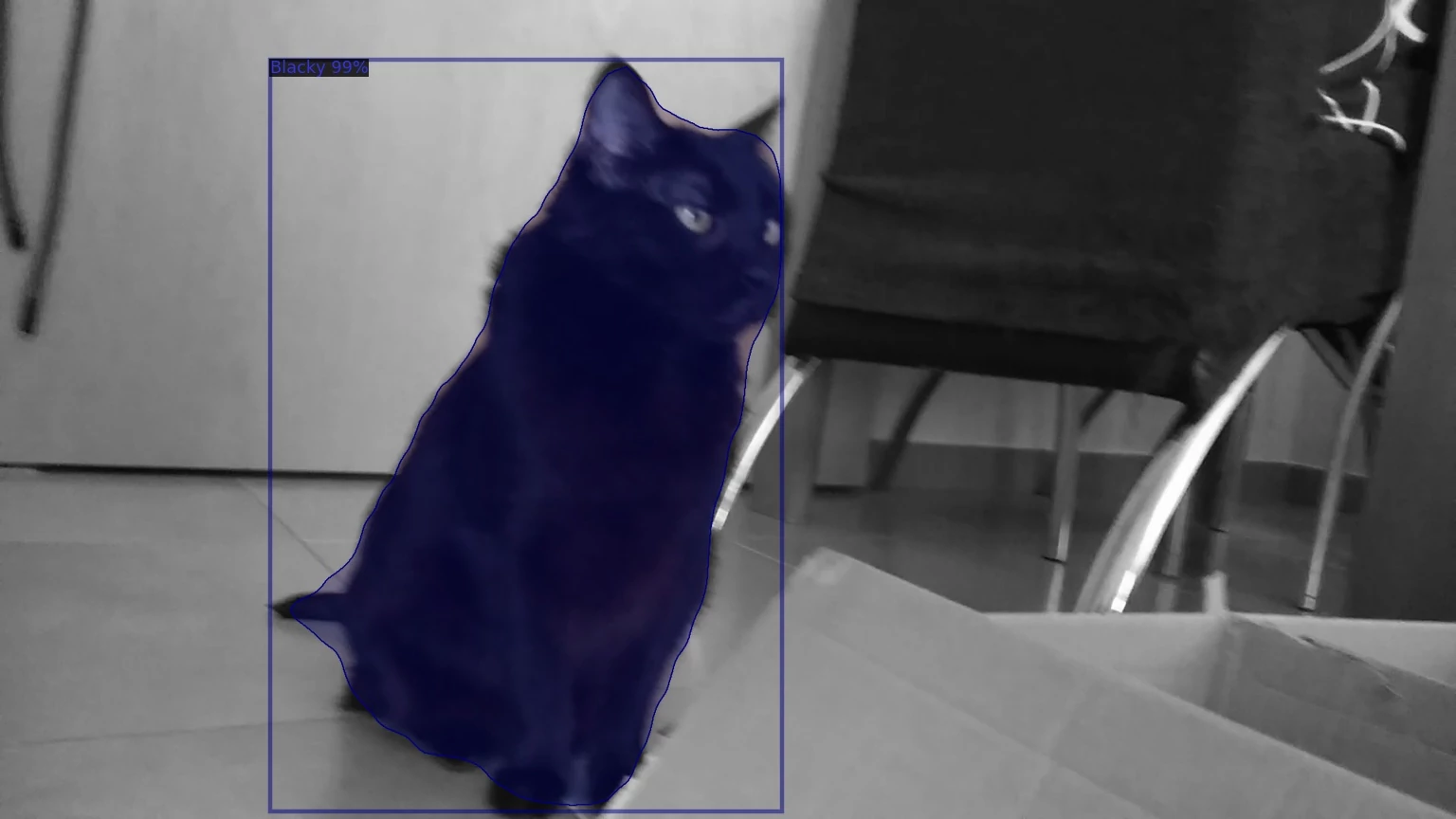
<p>To make the predicitions we use 3 random images from the validation dataset.</p>

<p>The predictor receive the image in format BGR, the same format that cv2 returns when reads the image.
Once we have the predictions then we create and configure the <mark>Visualizer</mark> that we’ll use to show the regions predicted over the original image.</p>

<p>The <mark>Visualizer</mark> accepts as the first parameter the original image but this time in RGB format, that’s why we have to reverse the array that cv2 returns when reads the image.
The second parameter is the metadata, which in this case consists of the name of the classes, <em>Blacky</em> and <em>Niche</em>, and the colors applied to the regions of each class.
The <mark>ColorMode.IMAGE\_BW</mark> value is used to remove the color of unsegmented pixels (the pixels that don’t belong to the predicted region).</p>

<p>At the end we apply the regions predicted over the original image with <mark>v.draw\_instance\_predictions(outputs["instances"].to("cpu"))</mark></p>

<p>In this case I save the image on disk because I don’t have access to XServer from inside Docker, so OpenCV cannot open any window to show the image. In case we worked from our local system we could use:</p>

<div class="language-plaintext highlighter-rouge"><div class="highlight"><pre class="highlight"><code>v = v.draw_instance_predictions(outputs["instances"].to("cpu"))
cv2.imshow(v.get_image()[:, :, ::-1])
</code></pre></div></div>

<p><img src="/assets/images/train-Detectron2-with-custom-dataset/inference_blacky.webp" alt="" title="Inference Blacky" />
<img src="/assets/images/train-Detectron2-with-custom-dataset/inference_niche.webp" alt="" title="Inference Niche" /></p>

<p><img src="/assets/images/train-Detectron2-with-custom-dataset/inference_both.webp" alt="" title="Inference Blacky and Niche" /></p>

<p>Check the <a href="https://github.com/davamix/cats-localization/blob/master/src/test.py">test.py</a> file in the repository to know how to make inference in a video. Spoiler alert: predicting every frame xD.</p>

<h2 id="references">References</h2>

<p><a href="https://github.com/davamix/cats-localization">Code repository</a></p>

<p><a href="https://drive.google.com/open?id=1o9zyd51QCqWG3DlArQnfH4q4clMVQmTY">Cats dataset</a></p>

<p>(zip file ~39MB)</p>

<p><a href="https://github.com/facebookresearch/detectron2">Detectron2 GitHub repository</a></p>

<p><a href="https://colab.research.google.com/drive/16jcaJoc6bCFAQ96jDe2HwtXj7BMD_-m5">Detectron2 Colab Notebook</a></p>

<p><a href="https://detectron2.readthedocs.io/tutorials/datasets.html">Documentation - Use Custom Datasets</a></p>

<p><a href="https://detectron2.readthedocs.io/modules/config.html#config-references">Documentation - Config References</a></p>

<p><a href="https://detectron2.readthedocs.io/tutorials/models.html">Documentation - Use Models</a></p>]]></content><author><name>Daniel Valcarce</name></author><category term="python" /><category term="ml" /><category term="detectron2" /><category term="object-detection" /><category term="ml" /><summary type="html"><![CDATA[In this post I'll show how train a model with Detectron2 with a custom dataset and then apply it detect my cats in a picture or video.]]></summary></entry><entry><title type="html">Save video frames as images with OpenCV</title><link href="https://davamix.net/2019/03/15/save-video-frames-as-images-with-opencv/" rel="alternate" type="text/html" title="Save video frames as images with OpenCV" /><published>2019-03-15T00:00:00+00:00</published><updated>2019-03-15T00:00:00+00:00</updated><id>https://davamix.net/2019/03/15/save-video-frames-as-images-with-opencv</id><content type="html" xml:base="https://davamix.net/2019/03/15/save-video-frames-as-images-with-opencv/"><![CDATA[<p>To read a frame we’ll use the method <a href="https://docs.opencv.org/4.0.1/d8/dfe/classcv_1_1VideoCapture.html#a473055e77dd7faa4d26d686226b292c1">read()</a>
from the <a href="https://docs.opencv.org/4.0.1/d8/dfe/classcv_1_1VideoCapture.html">VideoCapture</a> class then this frame can be saved with the
<a href="https://docs.opencv.org/4.0.1/d4/da8/group__imgcodecs.html#gabbc7ef1aa2edfaa87772f1202d67e0ce">imwrite</a> method.</p>

<!--more-->

<div class="language-plaintext highlighter-rouge"><div class="highlight"><pre class="highlight"><code>import cv2

video = cv2.VideoCapture("./video_file.mp4")

success, image = video.read()

if success:
    cv2.imwrite("frame.jpg", image)
</code></pre></div></div>

<p>The method <em>read()</em> returns two values, <em>success</em> is a boolean that tell us if a frame has been grabbed and the
<em>image</em> value is the frame itself.
Then using the method <em>imwrite</em> we’ll save that frame as an image file.</p>

<p>To save more than one frame or even all frames as images we need to put the read() into a loop, for instance:</p>

<div class="language-plaintext highlighter-rouge"><div class="highlight"><pre class="highlight"><code>import cv2

video = cv2.VideoCapture("./video_file.mp4")

# Read the first frame
success, image = video.read()
frame_id = 0

while success:
    cv2.imwrite("frame{}.jpg".format(frame_id), image)
    success, image = video.read()
    frame_id += 1
</code></pre></div></div>

<p>I created a script to save a percentage of the video frames as images. Check it out the <a href="https://github.com/davamix/frames-extractor">frames-extractor script</a>.</p>]]></content><author><name>Daniel Valcarce</name></author><category term="python" /><category term="computer-vision" /><category term="opencv" /><category term="image-processing" /><category term="video" /><summary type="html"><![CDATA[To read a frame we'll use the method read()(https://docs.]]></summary></entry><entry><title type="html">Configure a self-signed certificate in Ubuntu to allow HTTPS access with an ASP.NET Core 2.1 application</title><link href="https://davamix.net/2018/07/17/configure-a-self-signed-certificate-in-ubuntu-to-allow-https-access-with-an-asp-net-core-2-1-application/" rel="alternate" type="text/html" title="Configure a self-signed certificate in Ubuntu to allow HTTPS access with an ASP.NET Core 2.1 application" /><published>2018-07-17T00:00:00+00:00</published><updated>2018-07-17T00:00:00+00:00</updated><id>https://davamix.net/2018/07/17/configure-a-self-signed-certificate-in-ubuntu-to-allow-https-access-with-an-asp-net-core-2-1-application</id><content type="html" xml:base="https://davamix.net/2018/07/17/configure-a-self-signed-certificate-in-ubuntu-to-allow-https-access-with-an-asp-net-core-2-1-application/"><![CDATA[<ol>
  <li>Create an asp.net core project as usual and check if you have access using HTTPS.
<!--more-->
    <div class="language-plaintext highlighter-rouge"><div class="highlight"><pre class="highlight"><code> dotnet new web -o Sample
 cd Sample
 dotnet restore
 dotnet run
</code></pre></div>    </div>

    <p>1.1. Navigate to <a href="https://localhost:5001">https://localhost:5001</a>. Can you read the message <mark>Hello World!</mark>? Congrats, you can stop reading this guide. If Firefox shows you a <mark>Secure Connection Failed</mark> message or you have an error message in console like this:</p>

    <div class="language-plaintext highlighter-rouge"><div class="highlight"><pre class="highlight"><code> dbug: HttpsConnectionAdapter[1]
 Failed to authenticate HTTPS connection.
 System.Security.Authentication.AuthenticationException: Authentication failed, see inner exception. ---&gt; Interop+Crypto+OpenSslCryptographicException: error:2006D002:BIO routines:BIO_new_file:system lib
</code></pre></div>    </div>
    <p>Keep reading.</p>
  </li>
  <li>
    <p>Install <mark>ca-certificates</mark> and <mark>openssl<mark> packages</mark></mark></p>

    <div class="language-plaintext highlighter-rouge"><div class="highlight"><pre class="highlight"><code> sudo apt-get install ca-certificates openssl
</code></pre></div>    </div>
  </li>
  <li>
    <p>Genereate the .pfx certificate with dotnet command [<a href="#link1">1</a>]</p>

    <div class="language-plaintext highlighter-rouge"><div class="highlight"><pre class="highlight"><code> dotnet dev-certs https -ep ${HOME}/.aspnet/https/aspnetapp.pfx -p crypticpassword
</code></pre></div>    </div>
  </li>
  <li>
    <p>Extract the .crt file [<a href="#link2">2</a>]</p>

    <div class="language-plaintext highlighter-rouge"><div class="highlight"><pre class="highlight"><code> cd ${HOME}/.aspnet/https/
 openssl pkcs12 -in aspnetapp.pfx -nocerts -out aspnetapp.pfx
 openssl pkcs12 -in aspnetapp.pfx -clcerts -nokeys -out aspnetapp.crt
</code></pre></div>    </div>
  </li>
  <li>
    <p>Copy the .crt file to the certificates location [<a href="#link3">3</a>]</p>

    <div class="language-plaintext highlighter-rouge"><div class="highlight"><pre class="highlight"><code> sudo cp aspnetapp.crt /usr/local/share/ca-certificates/
</code></pre></div>    </div>
  </li>
  <li>
    <p>Change the permissions to allow to read the certificate [<a href="#link4">4</a>]</p>

    <div class="language-plaintext highlighter-rouge"><div class="highlight"><pre class="highlight"><code> sudo chmod +r /usr/local/share/ca-certificates/*
</code></pre></div>    </div>
  </li>
  <li>
    <p>Run the application again and check the https address</p>

    <div class="language-plaintext highlighter-rouge"><div class="highlight"><pre class="highlight"><code> dotnet run
</code></pre></div>    </div>
  </li>
</ol>

<p>Navigate to <a href="https://localhost:5001">https://localhost:5001</a>. If you have any error, you can check the links below to know more about each step.</p>

<h2 id="references">References</h2>

<p>[1] <a href="https://github.com/dotnet/dotnet-docker/blob/master/samples/aspnetapp/aspnetcore-docker-https.md">https://github.com/dotnet/dotnet-docker/blob/master/samples/aspnetapp/aspnetcore-docker-https.md</a></p>

<p>[2] <a href="https://www.markbrilman.nl/2011/08/howto-convert-a-pfx-to-a-seperate-key-crt-file/">https://www.markbrilman.nl/2011/08/howto-convert-a-pfx-to-a-seperate-key-crt-file/</a></p>

<p>[3] <a href="https://stackoverflow.com/a/44160125">https://stackoverflow.com/a/44160125</a></p>

<p>[4] <a href="https://github.com/dotnet/cli/issues/9376#issuecomment-393954876">https://github.com/dotnet/cli/issues/9376#issuecomment-393954876</a></p>]]></content><author><name>Daniel Valcarce</name></author><category term="dotnet" /><category term="web" /><category term="asp-net-core" /><category term="https" /><category term="ssl" /><summary type="html"><![CDATA[1.]]></summary></entry><entry><title type="html">Install .NET Framework 3.5 on Windows 10</title><link href="https://davamix.net/2017/04/25/install-net-framework-3-5-on-windows-10/" rel="alternate" type="text/html" title="Install .NET Framework 3.5 on Windows 10" /><published>2017-04-25T00:00:00+00:00</published><updated>2017-04-25T00:00:00+00:00</updated><id>https://davamix.net/2017/04/25/install-net-framework-3-5-on-windows-10</id><content type="html" xml:base="https://davamix.net/2017/04/25/install-net-framework-3-5-on-windows-10/"><![CDATA[<p>On Windows 10 is not possible to install .NET Framework 3.5 using the <mark>Turn Windows features on or off</mark> option because the error <mark>0x800F081F</mark>.
In my case I installed it following the steps below:</p>

<!--more-->

<ol>
  <li>Go to <a href="https://my.visualstudio.com">https://my.visualstudio.com</a> and download <mark>Windows 10 Features on Demand</mark> iso (x86 or x64).</li>
  <li>Mount the iso</li>
  <li>Open a PowerShell command line as Administrator and run the next command</li>
</ol>

<div class="language-plaintext highlighter-rouge"><div class="highlight"><pre class="highlight"><code>Dism /online /enable-feature /featurename:NetFX3 /All /Source:D:\ /LimitAccess
</code></pre></div></div>

<p>The output should something like this:</p>

<div class="language-plaintext highlighter-rouge"><div class="highlight"><pre class="highlight"><code>Deployment Image Servicing and Management tool
Version: 10.0.14393.0

Image Version: 10.0.14393.0

Enabling feature(s)
[==========================100.0%==========================]
The operation completed successfully.
</code></pre></div></div>

<p>If you go to Turn Windows features on or off the option fot .NET Framework 3.5 must be cheked.</p>]]></content><author><name>Daniel Valcarce</name></author><category term="dotnet" /><category term="sysadmin" /><category term="dotnet-framework" /><category term="windows" /><summary type="html"><![CDATA[On Windows 10 is not possible to install.]]></summary></entry><entry><title type="html">Create and configure a local NuGet server</title><link href="https://davamix.net/2016/08/20/create-and-configure-a-local-nuget-server/" rel="alternate" type="text/html" title="Create and configure a local NuGet server" /><published>2016-08-20T00:00:00+00:00</published><updated>2016-08-20T00:00:00+00:00</updated><id>https://davamix.net/2016/08/20/create-and-configure-a-local-nuget-server</id><content type="html" xml:base="https://davamix.net/2016/08/20/create-and-configure-a-local-nuget-server/"><![CDATA[<p>This guide will work with three project, the Nuget Server project, the Nuget Package project that contains a simple library and a Sample project to use the package created.</p>

<!--more-->

<h3 id="nuget-server-project">Nuget Server project</h3>

<ol>
  <li>Install the IIS server if you don’t have it yet.</li>
  <li>Create a new site, NugetServer for example, to host the server.</li>
  <li>Configure the port 8080 if its free, or any other as you wish.</li>
</ol>

<p>From Visual Studio:</p>
<ol>
  <li>Create an ASP.NET web project with the <mark>Empty</mark> template.</li>
  <li>
    <p>Install the <mark>Nuget.Server</mark> package.</p>

    <blockquote>
      <p><strong>Note</strong><br />
Check the <em>web.config</em> and be sure that the <mark>targetFramework</mark> version from <mark>httpRuntime</mark> entry is the same that <mark>targetFramework</mark> from <mark>compilation</mark> entry.<br />
If you have more than once <mark>compilation</mark> entry then remove the different one.</p>
    </blockquote>
  </li>
  <li>
    <p>Publish the project into your IIS server with the options below:</p>

    <blockquote>
      <p><strong>Note</strong><br />To publish the project on IIS you need to run Visual Studio as Administrator;</p>
    </blockquote>
  </li>
</ol>

<p>Connection:</p>

<div class="language-plaintext highlighter-rouge"><div class="highlight"><pre class="highlight"><code>- Publish method: Web deploy
- Server: localhost (no port number)
- Site name: NugetServer (site name in IIS)
- Destination URL: http://localhost:8080 (site address)
</code></pre></div></div>

<p>Settings:</p>

<div class="language-plaintext highlighter-rouge"><div class="highlight"><pre class="highlight"><code>- Configuration: Release
- Expand File Publish Options and check Exclude file from the App_Data folder
</code></pre></div></div>

<h3 id="nuget-package-project">Nuget Package project</h3>

<p>In Visual Studio create a new <mark>Class Library</mark> project and add a simple method that returns whatever value in order to test it later in the Sample project.
Download <em>Nuget.exe</em> from <a href="https://www.nuget.org/downloads">https://www.nuget.org/downloads</a> and run the next command where the <em>.csproj</em> is located in order to create the <mark>.nuspec</mark> file.</p>

<div class="language-plaintext highlighter-rouge"><div class="highlight"><pre class="highlight"><code>nutget.exe spec
</code></pre></div></div>

<blockquote>
  <p><strong>Note</strong><br />
If you have an error like</p>

  <p><code class="language-plaintext highlighter-rouge">Unexpected token 'spec' in expression or statement. + CategoryInfo : ParserError: (:) [], ParentContainsErrorRecordException + FullyQualifiedErrorId : UnexpectedToken</code></p>

  <p>Try to copy the <em>nuget.exe</em> to the same folder that <code class="language-plaintext highlighter-rouge">.csproj</code> file and run it from there.</p>
</blockquote>

<p>Open the <em>.nuspec</em> file created and complete all information.</p>

<p>Build the project in <mark>Release</mark> mode and generate the nuget package with:</p>

<div class="language-plaintext highlighter-rouge"><div class="highlight"><pre class="highlight"><code>nutget.exe pack Project_name.csproj -Prop Configuration=Release
</code></pre></div></div>

<blockquote>
  <p><strong>Note</strong><br.>
The previous command could fail if you don't fill correctly the *.nuspec* file.</br.></p>
</blockquote>

<p>Finally copy the <em>.nupkg</em> file created into the <mark>Packages</mark> folder of the NugetServer.</p>

<h3 id="sample-project">Sample project</h3>

<p>Create a new <mark>Console App</mark> project and configure the Nuget repository.</p>

<p><code class="language-plaintext highlighter-rouge">Tools -&gt; Nuget Package Manager -&gt; Package Manager Settings -&gt; Package Sources</code></p>

<p>Add a new one with this options:</p>

<div class="language-plaintext highlighter-rouge"><div class="highlight"><pre class="highlight"><code>Name: Local Server
Source: http://localhost:8080/nuget
Click on Update then Ok
</code></pre></div></div>

<blockquote>
  <p><strong>Note</strong><br />
If there is an error getting the list of packages from local server like the image below
<img src="/assets/images/create-local-nuget-server-1.PNG" alt="" title="Error ocurred getting the packages list from &gt; local Nuget server" />
check the Output console to know more about the error.</p>

  <p><code class="language-plaintext highlighter-rouge">[Local Server] The V2 feed at 'http://localhost:8080/Search()?$filter=IsLatestVersion&amp;searchTerm=''&amp;targetFramework='net47'&amp;includePrerelease=false&amp;$skip=0&amp;$top=26&amp;semVerLevel=2.0.0' returned an unexpected status code '500 Internal Server Error'.</code></p>

  <p>In this case the error 500 means that the sever cannot server the packages and is related with the note in the <a href="#nuget-server-note1">Nuget Server project</a> section.</p>
</blockquote>

<p>If all works correctly then you have access to your package and all its classes and methods.</p>

<h3 id="extra-automatise-the-package-creation">Extra: Automatise the package creation</h3>

<p>This is an alternative version of the Nuget Package project. Instead of create the package and copy it to the server manually, these tasks are performed by a script when you build the project.</p>

<p>Start in the same way creating the <mark>Class Library</mark> project and create a folder <mark>Tools</mark> in the solution folder then copy the <em>nuget.exe</em> file into it.
Create a <mark>Post-Build</mark> event with the content below to create the nuget package automatically and be moved to the Packages folder of the Nuget server</p>

<div class="language-plaintext highlighter-rouge"><div class="highlight"><pre class="highlight"><code>"$(SolutionDir)Tools\nuget.exe" pack "$(ProjectPath)" -Prop Configuration=Release

if exist "$(TargetDir)*.nupkg" (
  move "$(TargetDir)*.nupkg" "D:\path_to_server\Packages"
)
</code></pre></div></div>
<p>Be sure that the version of the library has been incremented after the build. I use
<a href="https://visualstudiogallery.msdn.microsoft.com/dd8c5682-58a4-4c13-a0b4-9eadaba919fe/">Automatic Versions</a></p>

<p>Now if you build several times you can check in the Sample project the latest version available for download.</p>

<blockquote>
  <p><strong>Note</strong><br />
If you don’t see the new versions available that means the new nuget packages has not been generated.
You can check all versions available of the package in the <code class="language-plaintext highlighter-rouge">Packages/package\_name</code> folder on Nuget Sever. If there is only one, means that something gone wrong.
If you are reusing the Nuget Package Sample project be sure to remove the <code class="language-plaintext highlighter-rouge">.nuspec</code> and <code class="language-plaintext highlighter-rouge">.nupkg</code> files from project folder because you don’t needed now also remove the <code class="language-plaintext highlighter-rouge">.nupkg</code> file from the Nuget Server that you copied manually.</p>
</blockquote>

<h2 id="references">References</h2>

<p><a href="http://docs.nuget.org/create/hosting-your-own-nuget-feeds">Hosting Your Own NuGet Feeds</a></p>

<p><a href="http://docs.nuget.org/create/Creating-and-Publishing-a-Package">Creating and Publishing a Package</a></p>]]></content><author><name>Daniel Valcarce</name></author><category term="dotnet" /><category term="backend" /><category term="nuget" /><category term="package-management" /><summary type="html"><![CDATA[This guide will work with three project, the Nuget Server project, the Nuget Package project that contains a simple library and a Sample project to use the package created.]]></summary></entry></feed>